

Aiken Format Converter
Aiken Format Converter: Turn Questions into a Moodle Aiken File
Aiken is the simplest plain-text format for importing multiple choice questions into Moodle. Learn the exact rules below, or upload a document and Formswrite builds a ready-to-import Aiken file for you.

What is Aiken format?
Aiken format is a plain-text way to write multiple choice questions so Moodle can import them into a question bank. It was designed to be readable by humans: no tags, no markup, just the question, the choices, and a line that says which choice is correct. That simplicity is why teachers like it, and also why it is easy to get slightly wrong. Moodle is strict about the layout, and one misplaced space can stop the whole file from importing. These are the rules, based on the Moodle documentation:
- Write each question on a single line. Aiken reads the first line of a block as the whole question, so a question split over two lines breaks the import.
- Put each answer choice on its own line, starting with a single uppercase letter followed by a period or a closing bracket and then a space, such as "A. " or "A) ".
- Directly after the last choice, add the answer line: the word ANSWER in capitals, a colon, a space, and the letter of the correct choice, for example "ANSWER: B".
- Leave a blank line between questions so each question block is clearly separated.
- Use it only for multiple choice questions with exactly one correct answer. There is no syntax for several correct answers, and a true/false item can only be written as a two-option multiple choice question.
- Keep it plain text. Aiken has no syntax for images, tables, bold text, or equations, so those need Moodle XML or GIFT instead.
- Save the file as a UTF-8 .txt file, and avoid curly quotes and other special characters copied from word processors, which Moodle warns can cause import errors.
Example 1: a valid Aiken file
Two questions, one using periods and one using brackets after the letters. Both styles are accepted.
What is the capital of France?
A. Madrid
B. Paris
C. Rome
D. Berlin
ANSWER: B

Which gas do plants absorb during photosynthesis?
A) Oxygen
B) Nitrogen
C) Carbon dioxide
D) Hydrogen
ANSWER: C
Example 2: common mistakes that break the import
This file will not import cleanly. The first question is numbered, uses lowercase letters, and has a lowercase “Answer” line. The second has no space after the letters, lists two correct answers, and is not followed by a blank line. The third splits the question over two lines and has no space after “ANSWER:”.
1. What is 7 x 8?
a. 54
b. 56
c. 64
Answer: b

Which of these are prime numbers?
A.2
B.4
C.5
ANSWER: A, C
Name the largest planet
in our solar system.
A. Jupiter
B. Saturn
ANSWER:A
Example 3: the same questions, fixed
Numbers removed, uppercase letters with a period and a space, a correct “ANSWER: ” line, blank lines between questions, one question per line, and the multi-answer question rewritten so it has a single correct choice.
What is 7 x 8?
A. 54
B. 56
C. 64
ANSWER: B

Which of these numbers is prime?
A. 4
B. 5
C. 6
ANSWER: B

Name the largest planet in our solar system.
A. Jupiter
B. Saturn
ANSWER: A
Fixing a long question bank by hand is tedious. Formswrite applies these rules for you when it converts a document, and if you are sending questions to Moodle regularly, see documents to Moodle for the full workflow.
How it works?
Turn a document of questions into a Moodle-ready Aiken file in three steps.
Step 1
Upload or paste your questions
Add a Word file, PDF, Google Doc, or a pasted list of multiple choice questions. Formswrite reads each question, its options, and the correct answer.
Step 2
AI maps them to Aiken
Formswrite detects the question text, the answer choices, and the correct option, then formats everything to the exact Aiken syntax Moodle expects.
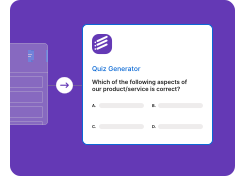
Step 3
Download the Aiken file
Download a clean Aiken-format .txt file and import it into your Moodle question bank under Import, choosing the Aiken format. No manual reformatting.

The Aiken syntax rules at a glance
Aiken is strict about its layout. These are the rules Formswrite applies for you.
| Element | Rule |
|---|---|
| Question text | The full question on a single line, with no label or number. |
| Answer choices | Each option on its own line: an uppercase letter, then a period or bracket, then a space: "A. " or "A) ". |
| Correct answer | A line reading "ANSWER: X" (capital letters, a space after the colon) right after the options. |
| Separator | A blank line between questions. |
| Question types | Single-answer multiple choice only. Aiken does not support short answer, matching, multiple correct answers, or essay. |
| Formatting | Plain UTF-8 text only. Images, bold, tables, and equations are not part of the Aiken format. |
Need more question types?
Aiken covers single-answer multiple choice. For matching, short answer, or cloze, convert to Moodle XML instead, which Formswrite also exports.
Other formats and platforms
The same questions can also export to GIFT, QTI, Canvas, Blackboard, Kahoot, Wayground (formerly Quizizz), and 40+ other targets. See documents to Moodle.
Aiken format FAQ
What is Aiken format?
Aiken format is a simple plain-text way to write multiple choice questions so they can be imported into Moodle. Each question is one line, each answer choice starts with an uppercase letter followed by a period or bracket and a space (A. or A)), and a final line reads "ANSWER: " followed by the correct letter. It is the easiest Moodle import format to read and write by hand.
How do I convert questions to Aiken format?
Upload a Word file, PDF, or Google Doc of multiple choice questions to Formswrite, or paste them in. The AI detects each question, its options, and the correct answer, then exports a ready-to-import Aiken .txt file. There is no manual reformatting and no add-on to install.
How do I import an Aiken file into Moodle?
In your Moodle course, go to the question bank, choose Import, select the Aiken format, upload the .txt file, and import. The questions appear in your question bank, ready to add to a quiz.
Why does my Aiken import fail in Moodle?
The usual causes are a question split over more than one line, lowercase letters or a lowercase "answer" line, a missing space after "ANSWER:", numbered questions, more than one correct letter on the answer line, or curly quotes and other special characters pasted from a word processor. Save the file as UTF-8 plain text and check each block against the rules above.
What question types does Aiken support?
Aiken supports multiple choice questions with a single correct answer. A true/false item can be written as a two-option multiple choice question. It does not support short answer, matching, cloze, essay, or multiple correct answers. For those, Formswrite can also export to Moodle XML or GIFT, which cover more question types.
Does Aiken format support more than four options?
Yes. You can use as many answer choices as you need, each on its own line starting with the next uppercase letter (A, B, C, D, E, and so on). The ANSWER line just needs the correct letter.
Is there a free way to create an Aiken file?
You can start for free with no credit card and see the converted questions. Exporting the Aiken file (like other platform exports) is available on a paid plan; the native Formswrite form and flashcard export are free.
Related Moodle and quiz tools
Build the questions, then send them to Moodle or any other LMS.
Documents to Moodle
Convert documents to Moodle XML, GIFT, or Aiken.
Documents to QTI
Export questions as QTI for Canvas and other LMSs.
Multiple Choice Test Maker
Generate multiple choice questions from a topic or document.
PDF to MCQ
Pull multiple choice questions out of a PDF.
AI Quiz Generator
Create a quiz for any platform from your material.
Aiken format guides
- Google Doc to Aiken format - step-by-step guide in English.
- Google Doc vers le format Aiken - the same guide in French.
- Google Doc se Aiken format - the same guide in Hindi.
- Moodle XML file generator - when you need more question types than Aiken allows.
Simple, Transparent Pricing
Start for free. Upgrade anytime.
Yearly
✨ Save 70%
Payment will be processed in USD, EUR, SGD, BRL, JPY, or INR.
Free
Get started free with 5 forms
Free
No credit card required.

5 Formswrite Forms
AI Builder (Fred AI)
10 AI questions per month
Browse Question Bank
Best Value
Pro
Unlimited everything, no limits
$79
/yearCancel anytime.
Everything in Free, plus:
Unlimited conversions
All 25+ export formats
Unlimited AI questions
Unlimited AI Lesson Plans
Unlimited AI Rubrics
Unlimited AI Worksheets
Flashcards
Presentation Decks
AI Video Lessons
Audio Lessons
Comics
Podcasts
Formswrite Play (Gamify Quizzes)
YouTube Video to Quiz
Bulk convert
Priority support
Lifetime
Pay once, use forever
$199
one-timeOne-time payment. No recurring fees.
Everything in Pro
Flashcards
Presentation Decks
AI Video Lessons
Audio Lessons
Comics
Podcasts
Formswrite Play (Gamify Quizzes)
YouTube Video to Quiz
One-time payment
Lifetime access to all features
All future updates included
Priority support forever