

Canvas Quiz Maker
Canvas Quiz Maker: Turn Any Document into a Canvas Quiz
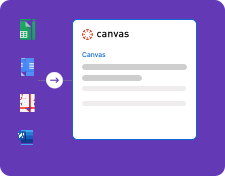
Upload a Word document, PDF, Google Doc, or Google Sheet and Formswrite detects the questions and correct answers, then builds a quiz file you import straight into Canvas LMS. No retyping questions into the Canvas editor.
How it works?
Create professional Canvas quizzes from any document format in minutes. Save time on quiz setup and focus on creating engaging educational content.
Step 1
Upload Your Document
Upload any document format - Google Docs, Google Sheets, PDF, or Word. Our system automatically detects the format and optimizes the conversion process for Canvas LMS.

Step 2
AI-Powered Canvas Conversion
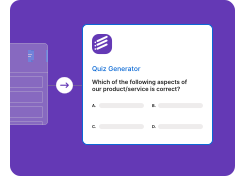
Our AI processes your document, identifies questions and answers, then converts everything into Canvas-compatible quiz format with proper question types and scoring.
Step 3
Import to Canvas LMS
Download your converted quiz and import it directly into Canvas. Set up gradebook integration, configure student access, and track performance through Canvas analytics.
Supported Document Formats
Google Docs to Canvas
Convert Google Docs directly to Canvas quizzes
• Real-time Google Docs sync
• Collaborative editing support
• Version history tracking
• Format preservation
• Automatic question detection
Google Sheets to Canvas
Transform spreadsheet data into Canvas quizzes
• Bulk question import
• Data validation
• Formula preservation
• Multiple sheet support
• Automatic formatting
PDF to Canvas
Extract content from PDFs for Canvas quizzes
• OCR text extraction
• Image preservation
• Table detection
• Multi-page support
• Format cleaning
Word to Canvas
Convert Word documents to Canvas format
• .doc and .docx support
• Style preservation
• Image handling
• Table conversion
• Structure optimization
Canvas Integration Features
Canvas LMS Integration
Seamless Canvas quiz creation
• Canvas quiz format
• Question banks
• Assignment groups
• Gradebook integration
• Student analytics
Smart Conversion Engine
AI-powered document processing
• Question type detection
• Answer extraction
• Scoring configuration
• Canvas-specific formatting
• Bulk conversion support
What is a Canvas quiz maker?
Canvas LMS has its own quiz editor, but building a quiz there means adding one question at a time, typing every answer choice, and marking the correct option by hand. That is fine for five questions and painful for fifty. A Canvas quiz maker lets you keep writing questions where you already write them, in Word, Google Docs, a PDF handout, or a spreadsheet, and turns that document into a quiz Canvas can import.
Formswrite works as a Canvas quiz converter: it reads the document, detects each question, the answer choices, and the correct answer, and exports a QTI package. QTI is the standard question format Canvas uses for quiz imports, so the file goes into your course through the normal Canvas import tool.
How to make a Canvas quiz from a document
- Upload the document with your questions. Upload a Word document, PDF, Google Doc, or Google Sheet. Scanned PDFs work because Formswrite runs OCR on them.
- Review the detected questions. Formswrite finds each question, its answer choices, and the correct answer. Fix any wording or answer before you export.
- Export the Canvas quiz file. Choose Canvas LMS as the export target. Formswrite creates a QTI package, the format Canvas uses to import quizzes.
- Import it into your Canvas course. In Canvas, open the course, go to Settings, choose Import Course Content, pick QTI .zip file as the content type, select the file, and run the import.
- Check the quiz and publish. Open the imported quiz from the Quizzes page, review points and settings such as time limit and attempts, then publish it for students.
Examples of what teachers convert
- A Word unit test: a 30-question multiple choice test written years ago in Word, moved into a new Canvas course without retyping.
- A scanned PDF worksheet: a printed quiz from a textbook publisher, scanned and read with OCR, then reviewed and imported as an online quiz.
- A shared question bank in Google Sheets: a department spreadsheet of questions exported once and imported into several course sections.
- Text to Canvas quiz: questions pasted into a Google Doc from notes or an email, cleaned up and converted in one pass.
Tips for a clean Canvas import
- Keep one question per block, with its answer choices directly underneath.
- Mark the correct answer clearly in the document, or include an answer key, so it is detected reliably.
- Review scanned pages before exporting, since OCR can misread symbols and formulas.
- After import, check point values, time limits, and allowed attempts in the Canvas quiz settings before publishing.
- Starting from scratch instead of a document? Generate the questions first with the AI quiz generator, then export to Canvas.
Canvas Quiz Maker FAQ
What is a Canvas quiz maker?
A Canvas quiz maker creates a quiz you can load into Canvas LMS without typing every question into the Canvas quiz editor. Formswrite reads the questions and answers from a Word file, PDF, Google Doc, or Google Sheet and exports a Canvas-ready quiz file you import into your course.
How do I convert a Word document to a Canvas quiz?
Upload the Word document to Formswrite, review the questions and correct answers it detects, and export to Canvas LMS. Then in your Canvas course go to Settings, Import Course Content, choose QTI .zip file, upload the file, and import. The quiz appears on the Quizzes page.
Can I turn a PDF quiz into a Canvas quiz?
Yes. Formswrite extracts questions and answer choices from PDFs, including scanned PDFs through OCR, and exports them as a Canvas quiz file. Review the questions before exporting, especially for scanned pages.
What file does Canvas need to import a quiz?
Canvas imports quizzes from QTI packages, which are .zip files that contain the questions, answers, and point values in a standard format. Formswrite builds that package for you, so you never have to edit the XML by hand.
Is the Canvas quiz maker free?
Exporting to Canvas is part of the Formswrite paid plans. You can create an account, upload a document, and review the detected questions before deciding to upgrade.
Can I use the same questions in other platforms?
Yes. The same question set can be exported to Moodle, Blackboard, Brightspace, Schoology, Google Forms, Kahoot, and many more targets, so you do not need to rebuild a quiz when you use more than one platform.
More LMS and quiz tools
Build questions once and send them wherever your courses live.
Documents to QTI
Export questions as QTI 1.2, 2.1, or 2.2 packages.
Documents to Moodle
Send the same questions to Moodle.
Import Quizzes to LMS Platforms
See every LMS Formswrite exports to.
AI Quiz Generator
Generate a quiz from a PDF or topic, then export to Canvas.
Multiple Choice Test Maker
Build a multiple choice exam from your material.
PDF to Quiz
Turn a PDF into a quiz with an answer key.
Related Canvas guides
- Canvas quiz converter from Word and PDF - the full conversion walkthrough.
- QTI converter online - how QTI files work and how to create one.
- Canvas questions import tutorial - importing into Canvas step by step.
- How to turn your PDF into a Canvas LMS quiz - a PDF-specific guide.
Simple, Transparent Pricing
Start for free. Upgrade anytime.
Yearly
✨ Save 70%
Payment will be processed in USD, EUR, SGD, BRL, JPY, or INR.
Free
Get started free with 5 forms
Free
No credit card required.

5 Formswrite Forms
AI Builder (Fred AI)
10 AI questions per month
Browse Question Bank
Best Value
Pro
Unlimited everything, no limits
$79
/yearCancel anytime.
Everything in Free, plus:
Unlimited conversions
All 25+ export formats
Unlimited AI questions
Unlimited AI Lesson Plans
Unlimited AI Rubrics
Unlimited AI Worksheets
Flashcards
Presentation Decks
AI Video Lessons
Audio Lessons
Comics
Podcasts
Formswrite Play (Gamify Quizzes)
YouTube Video to Quiz
Bulk convert
Priority support
Lifetime
Pay once, use forever
$199
one-timeOne-time payment. No recurring fees.
Everything in Pro
Flashcards
Presentation Decks
AI Video Lessons
Audio Lessons
Comics
Podcasts
Formswrite Play (Gamify Quizzes)
YouTube Video to Quiz
One-time payment
Lifetime access to all features
All future updates included
Priority support forever